GPT Image 2 is an image generation model used by GPTImage2 for text-to-image creation and image-to-image editing. It is strong at rendering text inside an image, keeping the same character consistent across generations, and editing photos from natural-language instructions. This guide covers the two ways most people actually use it day-to-day — and gives you a handful of finished prompts you can open and remix without writing anything from scratch.
TL;DR
Use ChatGPT for fast personal iteration — describe what you want, then refine in conversation.
Use your own website when you want visitors to try it and stay on your domain (prompt pre-fill, one click).
Don't start from a blank prompt — remix one of the curated examples below and change a few variables.
Workflow comparison:
| GPT Image 2 workflow | Best for | Main limitation | Next step |
|---|---|---|---|
| ChatGPT conversation | Fast personal drafts and quick prompt testing | Hard to reuse, track, or turn into product traffic | Save the prompt once it works |
| GPTImage2 generator page | Repeatable website traffic, prompt templates, and conversions | Needs a clear prompt entry point | Link readers to a prompt or generator URL |
| Prompt library remixing | Users who know the outcome but not the wording | Requires enough examples to browse | Start from a proven prompt card |
What GPT Image 2 Actually Does Well
Where GPT Image 2 separates from earlier models is three concrete capabilities: readable text in images (including CJK), character consistency across multiple generations from the same description, and image-to-image editing that understands up to 14 reference images at once. That means prompts can be much more specific — "same character, different outfit, different lighting" works reliably.
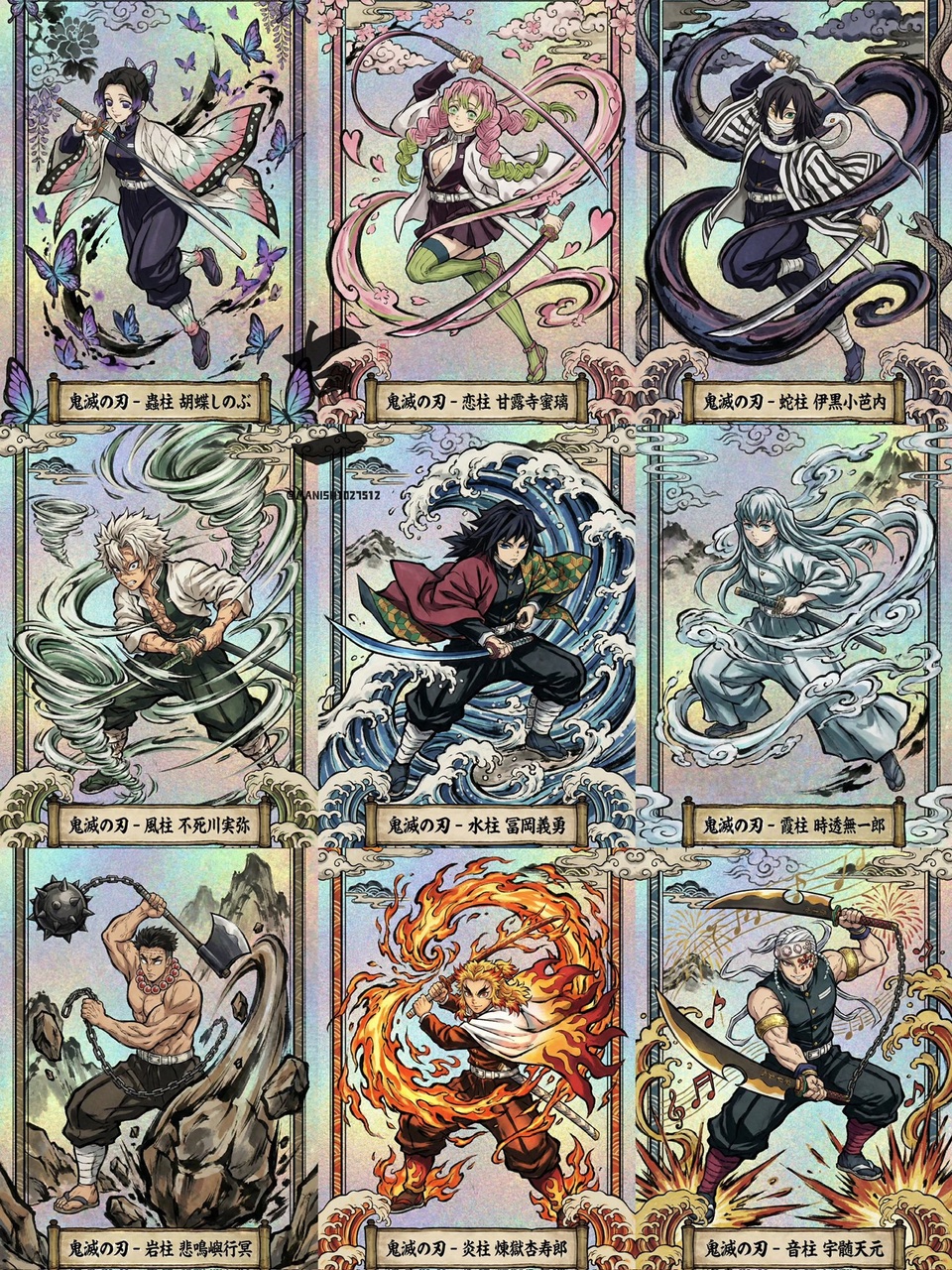
In practice, this shifts how you write prompts. Instead of one-shot "a beautiful portrait," you write a template with slots you can reuse. The example below is a trading-card template: swap the character name, the pose, the hashira title, and you get a new card in the same visual language.
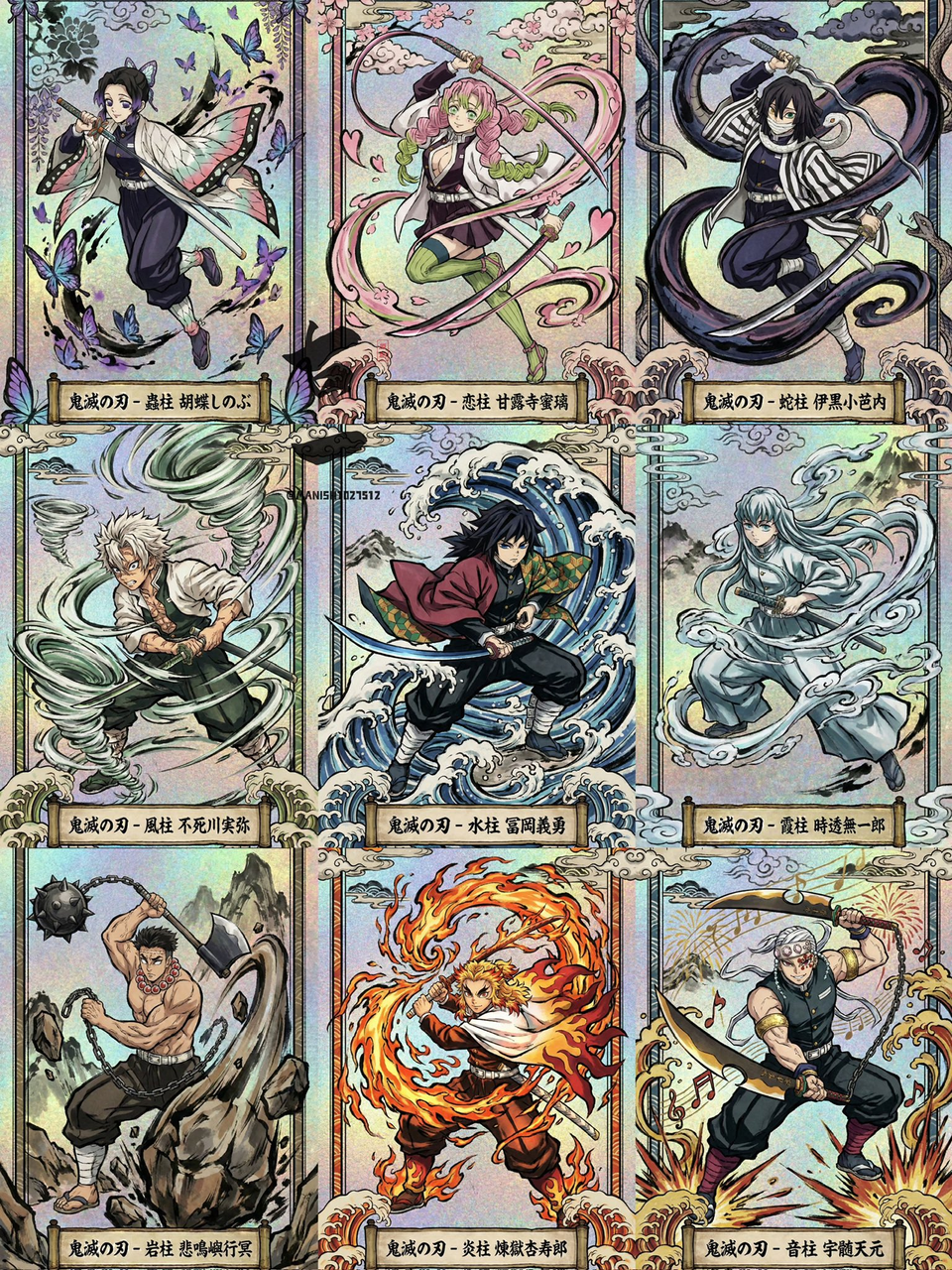
Ukiyo-e Trading Card
Japanese woodblock + holographic foil. The prompt is a template with {Character}, {Pose}, {Visual Effect} slots — change three words and you have a new card in the same style.
Open promptMethod 1: Generate Directly in ChatGPT
This is the fastest personal workflow. Open ChatGPT, describe what you want, and keep replying with edits until it looks right. No button to install, no site to deploy.
When this works well:
- You are iterating on an idea and want to revise in natural language.
- You're making one or two images for yourself, not publishing at scale.
- You want to test a prompt concept before committing to it.
Example first message:
A premium product photo of a matte ceramic coffee cup on a wooden table, soft morning light, editorial style, shallow depth of field.Then iterate: "make the cup navy blue", "shoot from above", "add a croissant on the left". ChatGPT keeps context from previous turns, so you're building on what it already drew.
The limit of this method: nothing is reusable. Every image lives in a private chat. If you want visitors, traffic, or conversions, you need Method 2.
Method 2: Put It on Your Own Website
If you're building a product, a blog, or a landing page, keep the generator on your domain. The simplest version is a single button that points to a generator page with a pre-filled prompt — so a reader clicks once and lands in the creative tool, already mid-task.
The URL pattern looks like this:
<a
  href="/ai-image-generator?prompt=A%20premium%20product%20photo%20of%20a%20matte%20ceramic%20coffee%20cup"
>
  Generate Image
</a>
Why this matters: the user stays inside your experience, your page can capture their session (sign-up, credits, purchase), and every article on your site becomes a real entry point to the product rather than a dead-end explainer.
The card below is exactly this pattern in action — click it and you land on a prompt page that already has the full template and a "Use this prompt in GPT Image 2" button.
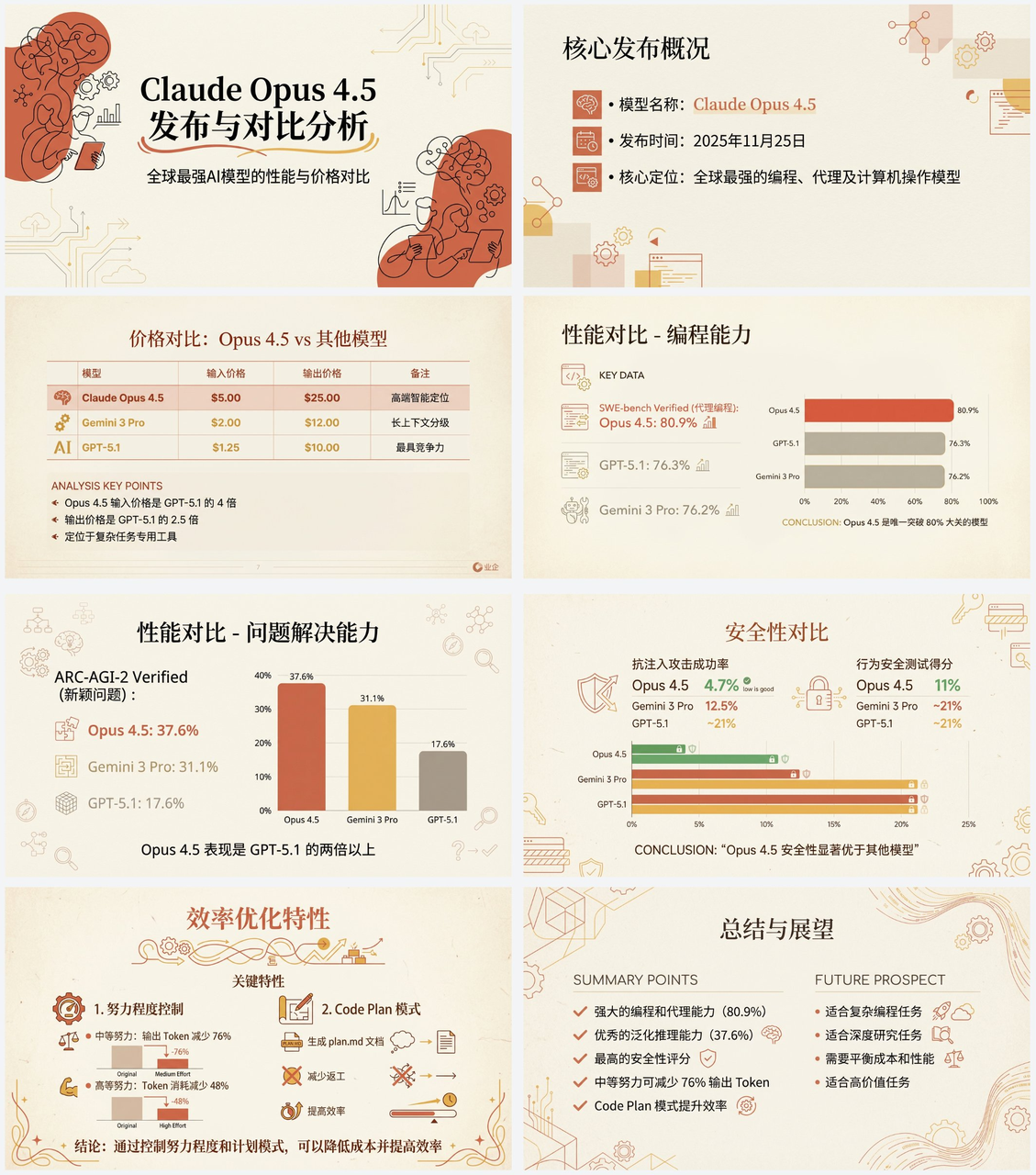
Claude-Style PPT from an Article
A long prompt that turns an article into warm-academic presentation slides. Useful when you want to show visitors what the model can do beyond decorative images.
Open promptDon't Start From a Blank Prompt — Remix One That Works
The single biggest reason new users give up on AI image models isn't quality — it's the blank prompt box. You know you want "something cool" but you don't know what concrete words turn into a good image. The fix is to start from a prompt someone already proved works, and change just the variables that matter to you.
Here are two more prompts from the library, covering very different styles. Each card links to the full prompt text and an example image.
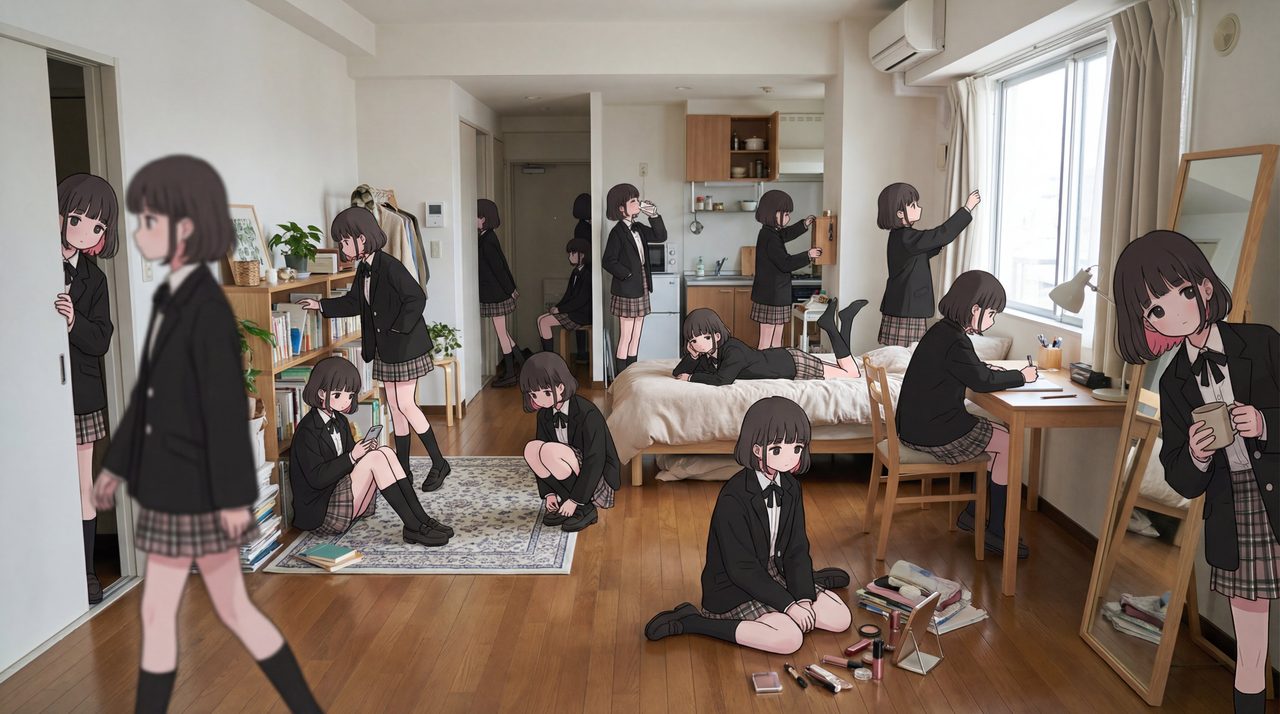
Character Cloning — Tokyo Studio
Thirty copies of the same character in one scene. Demonstrates pixel-perfect consistency across a crowded composition.
Open prompt
Image from GPS + Date
Provide latitude, longitude and a timestamp — the model renders a historically plausible scene at that place and time.
Open promptFAQ
Does GPT Image 2 support Chinese or Japanese text in images? Yes. GPT Image 2 is notably strong at rendering readable text inside images, including Chinese, Japanese, and Korean scripts. You still need to write the exact text clearly in the prompt and keep the layout simple. Short labels, packaging text, card titles, and poster headlines usually work better than dense paragraphs.
Can I use the generated images commercially? Yes. GPTImage2 outputs are designed for watermark-free commercial use, including social posts, product mockups, blog visuals, ads, and client drafts. You should still avoid infringing trademarks, public figures, or copyrighted characters unless you have rights. For repeated work, check the pricing page so you understand credit cost per image.
How long does one image take? Most GPT Image 2 generations take about 15-60 seconds, depending on quality settings, reference images, and current provider latency. HD drafts are usually the fastest option for prompt testing. Use higher resolution only after the composition, text, and subject are close enough to keep.
Do I need to write long prompts for good results? No. Specific prompts usually perform better than long vague prompts. A strong prompt names the subject, output format, style, lighting, composition, text, and constraints in plain language. If a result is close, edit one variable at a time instead of rewriting the whole prompt from scratch.
How is this different from DALL·E 3 or Gemini Imagen? GPT Image 2 is strongest when you need accurate image text, consistent characters, and reference-photo transformations. DALL·E 3 can be convenient for quick conversational drafts, while Imagen is competitive for general photorealism. If your workflow depends on reusable prompt pages and direct generation, GPTImage2 gives the model a clearer product path.
Start From Something That Already Works
The quickest way to make GPT Image 2 useful is to pick one of the prompts above, open it, swap the variables that matter to you, and generate. That's the whole loop — and it's faster than writing a prompt from scratch.